Reclaiming LVM Storage Space from /home to Root Partition
How to remove an oversized /home LVM partition and reclaim storage space for the root filesystem when your server is running out of disk space.
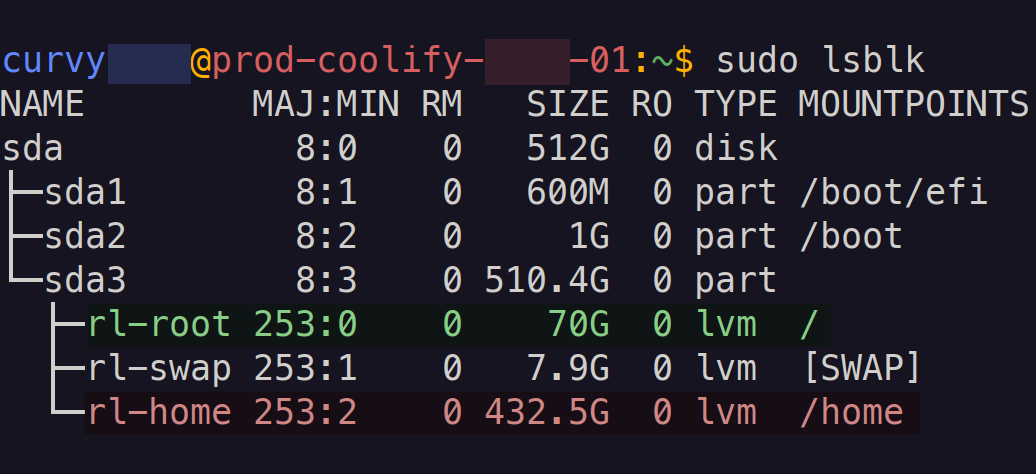
When your server starts sending low disk space warnings but you discover that /home has hundreds of gigabytes whilst / is nearly full, you need to redistribute that storage. This guide shows how to remove a separate /home LVM partition and reclaim its space for the root filesystem.
Prerequisites Check
Before proceeding, verify your filesystem type:
1
2
3
4
5
# Check filesystem types
df -Th

# Verify LVM layout
sudo lsblk
XFS Requirement: This tutorial applies only to XFS filesystems. Ensure the Type column shows
xfsfor/dev/mapper/rl-rootbefore continuing.
Quick Resolution Steps
1
2
# 1. Backup /home data
sudo rsync -aAXv /home/ /root_home_backup/
Live CD Required: These operations cannot typically be performed on a running system as they require the active
/homefilesystem to be unmounted. Boot from a live CD/USB before proceeding further.
1
2
3
4
5
6
7
8
9
10
11
12
13
14
15
16
17
18
19
20
21
22
23
24
# 2. Boot from live CD/USB

# 3. Remove the /home LVM partition
sudo lvremove /dev/rl/home

# 4. Extend root partition to use freed space
sudo lvextend -l +100%FREE /dev/rl/root

# 5. Activate LVM volumes
sudo vgchange -ay

# 6. Mount root partition
sudo mount /dev/rl/root /mnt

# 7. Grow XFS filesystem
sudo xfs_growfs /mnt

# 8. Restore /home data to root partition
sudo rsync -aAXv --delete /root_home_backup/ /mnt/home/

# 9. Update fstab to remove /home mount
sudo nano /mnt/etc/fstab

# 10. Reboot out of live CD and back into the main system storage
Detailed Explanation
Step 1: Data Backup with rsync
1
sudo rsync -aAXv /home/ /root_home_backup/
The flags preserve all file attributes during backup:
-a: Archive mode (preserves permissions, timestamps, symlinks)-A: Preserves ACLs (Access Control Lists)-X: Preserves extended attributes-v: Verbose output to see what’s being copied
Steps 3-7: LVM Operations
The core LVM manipulation happens in the live environment:
lvremove: Completely deletes the/homelogical volume, freeing up space in the volume grouplvextend: Expands the root logical volume to claim all available spacevgchange -ay: Activates the volume group so we can mount partitionsmount: Makes the root filesystem accessible for operationsxfs_growfs: Expands the XFS filesystem to use the newly allocated space
Step 9: The fstab Gotcha
Edit /mnt/etc/fstab and remove the line that looks like:
1
/dev/mapper/rl-home /home xfs defaults 0 0
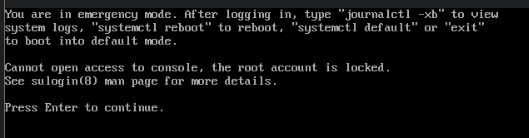
Why this matters: If you forget this step, your system will boot into emergency mode faster than you can say ‘I should have read the instructions properly’. The system will sit there confused, looking for a /home partition that no longer exists.
Ask me how I know.
Verification
After rebooting, verify the changes:
1
2
3
4
5
6
7
8
# Check new partition layout
sudo lsblk

# Verify available space
df -h

# Confirm /home is accessible
ls -la /home/
Before:
1
2
3
4
NAME        MAJ:MIN RM   SIZE RO TYPE MOUNTPOINTS
├─rl-root 253:0    0    70G  0 lvm  /
├─rl-swap 253:1    0   7.9G  0 lvm  [SWAP]
└─rl-home 253:2    0 432.5G  0 lvm  /home
After:
1
2
3
NAME        MAJ:MIN RM   SIZE RO TYPE MOUNTPOINTS
├─rl-root 253:0    0 502.5G  0 lvm  /
└─rl-swap 253:1    0   7.9G  0 lvm  [SWAP]
Understanding the Problem
Why This Happens
Default Linux installations often create separate partitions for /home to isolate user data from system files. However, on servers where /home isn’t heavily used (like a personal computer), this can lead to:
- Root partition filling up with application data, logs, and containers
- Massive unused space in
/home - Server alerts and potential service failures due to low disk space
LVM Advantages
Logical Volume Manager (LVM) makes this redistribution possible by providing:
- Flexible partitioning: Logical volumes can be resized without repartitioning
- Volume management: Easy addition, removal, and resizing of storage
- Snapshot capability: Though not used in this procedure
Filesystem Considerations
This procedure works specifically with XFS filesystems because:
- XFS supports online growing (expanding whilst mounted)
xfs_growfssafely extends the filesystem to use new space- EXT4 requires different tools (
resize2fs) and may have different limitations
Conclusion
Reclaiming storage from an oversized /home partition involves backing up data, removing the logical volume, extending the root partition, and restoring the data. The key is using a live environment to safely manipulate active filesystems and ensuring your filesystem type supports the growth operations.
This solution transformed a server with 87% disk usage warnings into one with ample space for continued operation, eliminating the immediate storage crisis whilst maintaining all user data integrity.